.png)
Authored by: Support.com Tech Pro Team
Solving Common Problems with the Samsung F54 5G Smartphone

The Samsung F54 5G is a sophisticated smartphone with advanced features, but like any electronic device, it may encounter issues. This comprehensive guide will help you troubleshoot and resolve common problems that Samsung F54 5G users may face. Before you start troubleshooting, ensure that your device is running the latest software version and back up your important data.
Basic Troubleshooting Steps
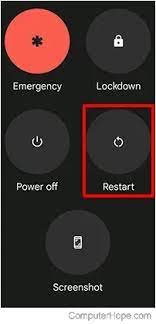
Restart or Reboot the Phone
A simple restart can resolve minor issues. Press and hold the Power button, then select "Restart" or "Reboot."
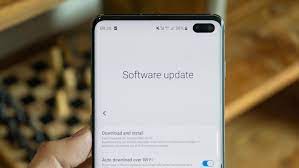
Check for Software Updates
Ensure your phone's software is up-to-date by going to Settings > Software Update > Download and Install.
Clear Cache and Data
Go to Settings > Apps > [App Name] > Storage > Clear Cache/Clear Data to fix app-specific problems.

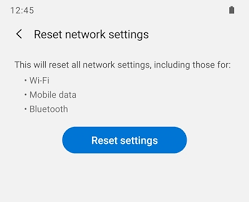
Reset Network Settings
Navigate to Settings > General management > Reset > Reset network settings to resolve network-related issues.
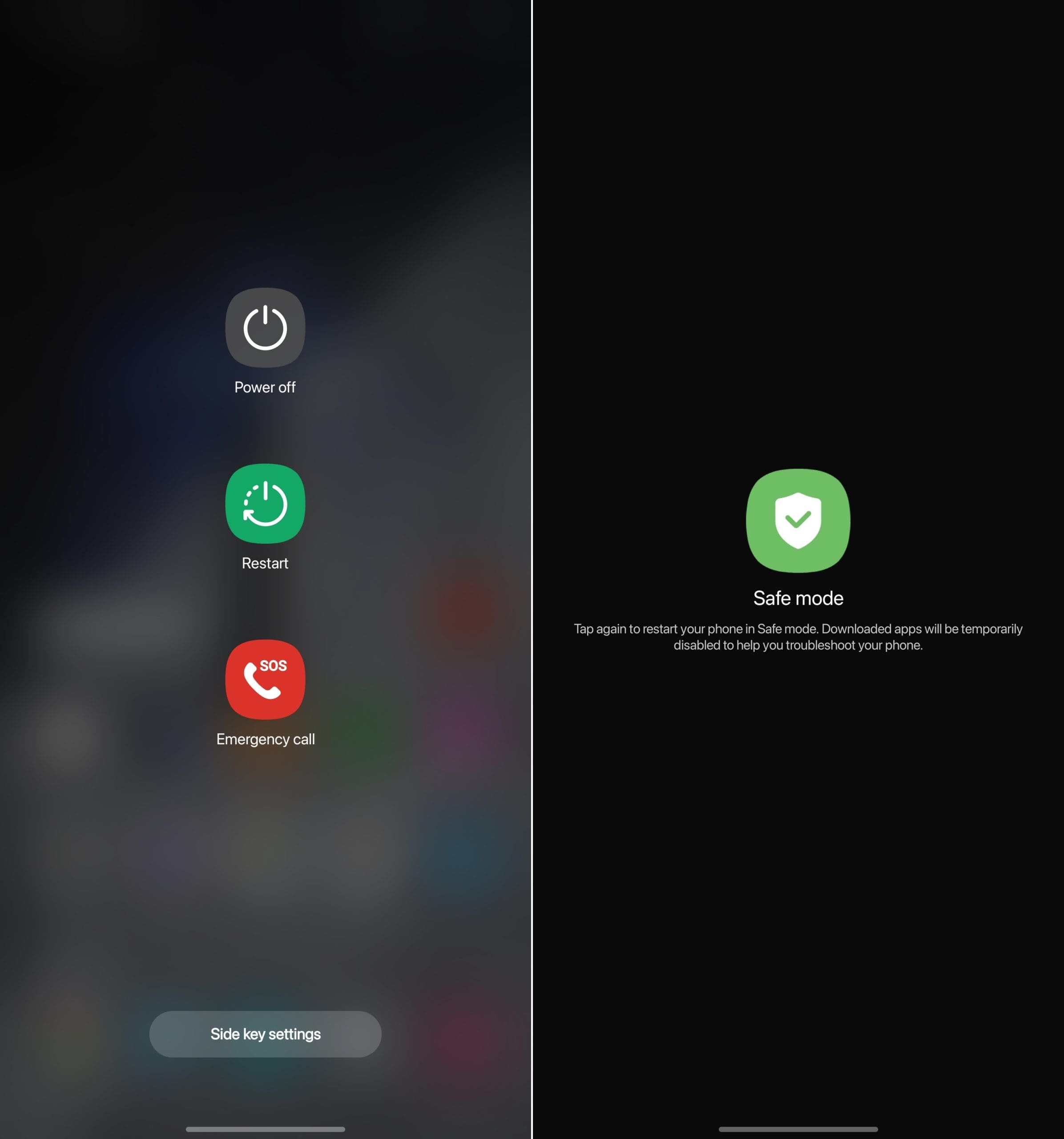
Safe Mode
Boot the phone into Safe Mode to determine if a third-party app is causing problems. Press and hold the Power button, then long-press "Power off" and select "Safe Mode."
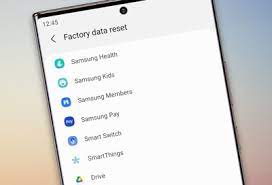
Factory Reset
As a last resort, perform a factory reset (backup your data first). Go to Settings > General management > Reset > Factory data reset.
Battery and Charging Issues
Fast Charging Not Working
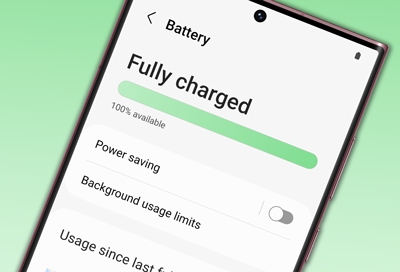
Use genuine Samsung chargers and cables. Check for debris in the charging port and restart your phone. Ensure fast charging is enabled in Settings > Battery > Charging.

Battery Drains Quickly
Adjust settings like screen brightness, background apps, and location services. Check battery usage in Settings > Battery > Battery usage.
Overheating While Charging
Avoid using the phone while charging, and remove any protective cases to improve heat dissipation.

Wireless Charging Problems
Ensure the charger and phone are properly aligned. Check for foreign objects on the charger and phone's back cover.

Connectivity Issues
Wi-Fi Problems
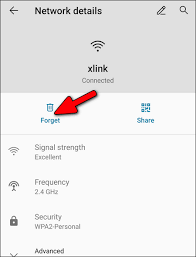
Forget and reconnect to the Wi-Fi network, reboot the router, and ensure the Wi-Fi frequency band is compatible.
Bluetooth Connection Problems
Clear Bluetooth cache, ensure devices are paired correctly, and update Bluetooth firmware if available.
Mobile Data Issues
Check data usage limits, reset network settings, or contact your carrier for assistance.
Performance Problems
Slow or Laggy Performance
Close background apps, clear cache, and consider reducing animations in Developer Options (Settings > About phone > Software information > Tap "Build number" multiple times to enable Developer Options).
App Crashes and Freezes
Update apps, clear app cache and data, or uninstall and reinstall problematic apps.
Insufficient Storage Space
Delete unnecessary files or apps, and consider using a microSD card for additional storage.
Miscellaneous Issues
App Installation Problems
Clear Play Store cache, check for Play Store updates, or sideload apps if necessary.
Phone Overheating during Usage
Reduce screen brightness, close unused apps, and consider factory resetting if the issue persists.

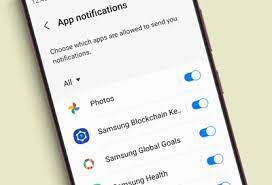
Notification Issues
Ensure app notifications are enabled in Settings > Notifications > [App Name].
SIM Card Problems
Check for SIM card damage, ensure it's properly inserted, and contact your carrier for assistance.
Troubleshooting common issues with the Samsung F54 5G smartphone can be a straightforward process if you follow these steps. Remember to back up your data before performing any major troubleshooting.
Contact Support.Com:
If you are still having trouble consider seeking personalized assistance from Support.Com.

Support.com is committed to your privacy
We do not share or sell your data to third parties. We do use cookies and other third-party technologies to improve our site and services. The California Consumer Privacy Act (CCPA) gives you the ability to opt out of the use of cookies, third-party technologies and/or the future sale of your data. Do not sell my personal information.

Support.com is committed to your privacy
Read our Privacy Policy for a clear explanation of how we collect, use, disclose and store your information
